The latest release includes some significant changes to the UI. These changes include some new functions along with cosmetic changes made to existing UI features. The latest patch also includes bug fixes and other improvements made to existing features to improve overall performance and stability.
The new features are
- Add new record in Inline Edit Mode
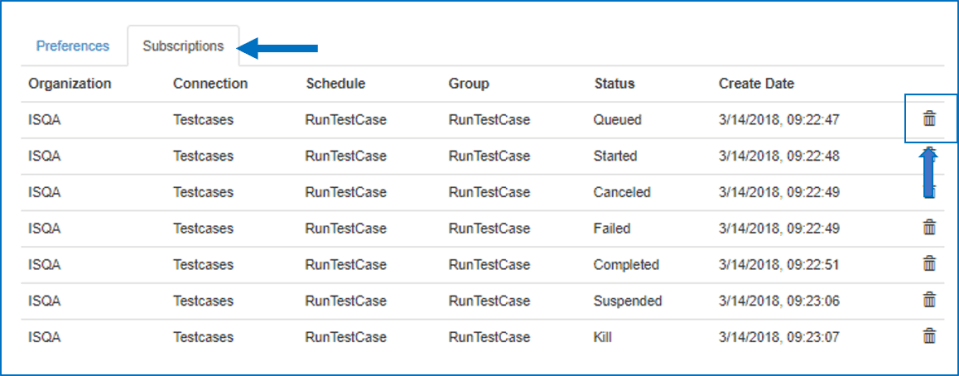
- New screen to check existing subscriptions
UI Improvements
- UI Toggling between modes changed to single click
- Changes to Outline Edit for Grids
- Compact Top Menu bar
- Icon to display new release notes post ->

New Icons to switch modes
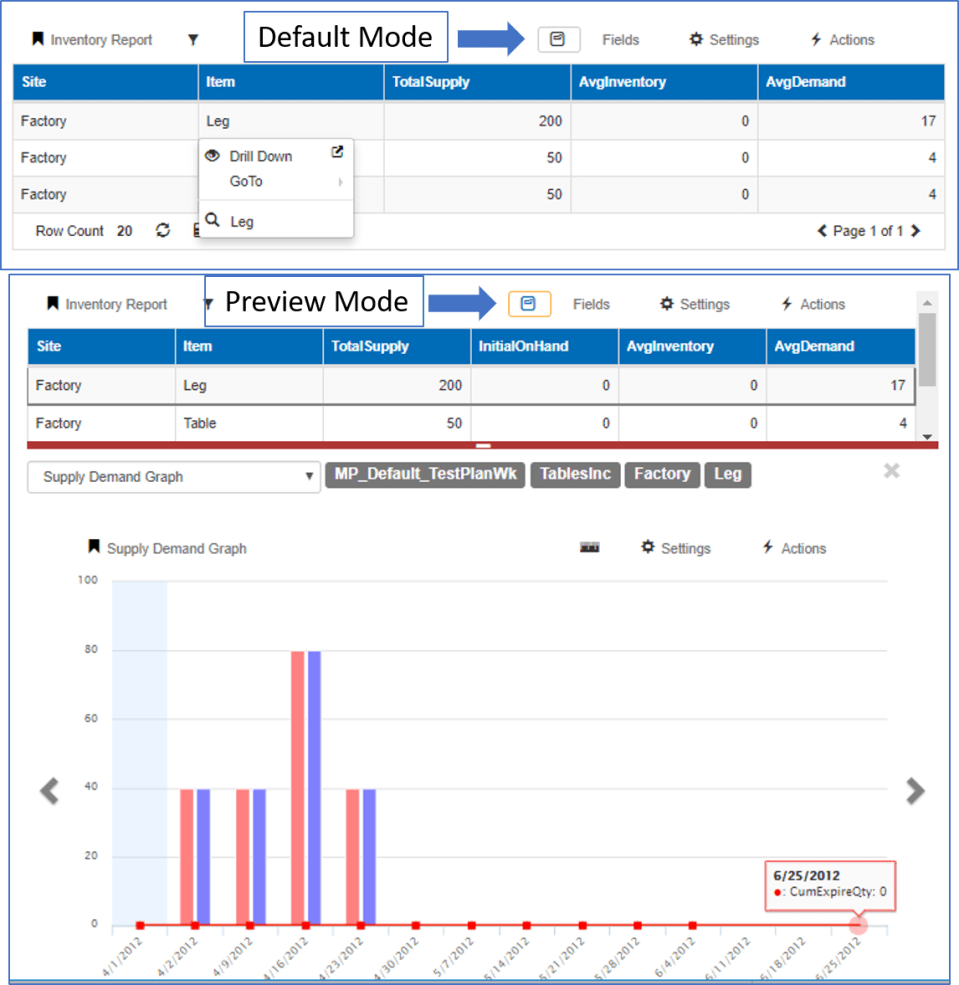
Preview/Drilldown Mode
- A new preview icon is now used to switch between default/preview modes
- When selected, the icon has an orange border to represent it is in preview mode.
- When unselected it is in default mode(Click on cell to see drilldown/goto options)
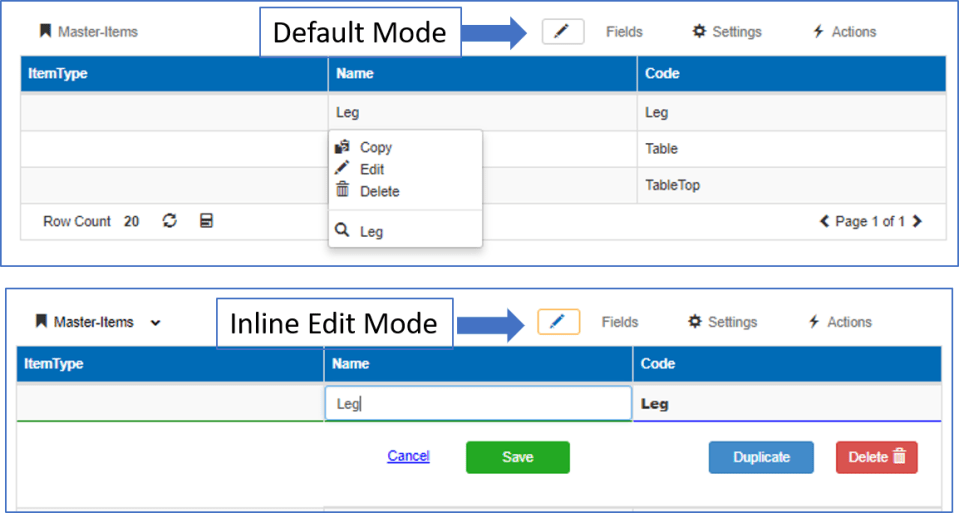
Edit Mode
- A new pencil icon is now used to represent the edit mode.
- When selected the icon has an orange border to represent it is in Inline Edit mode.
- When unselected it is in default mode(Outline edit – Click on cell to see edit/copy/delete options)
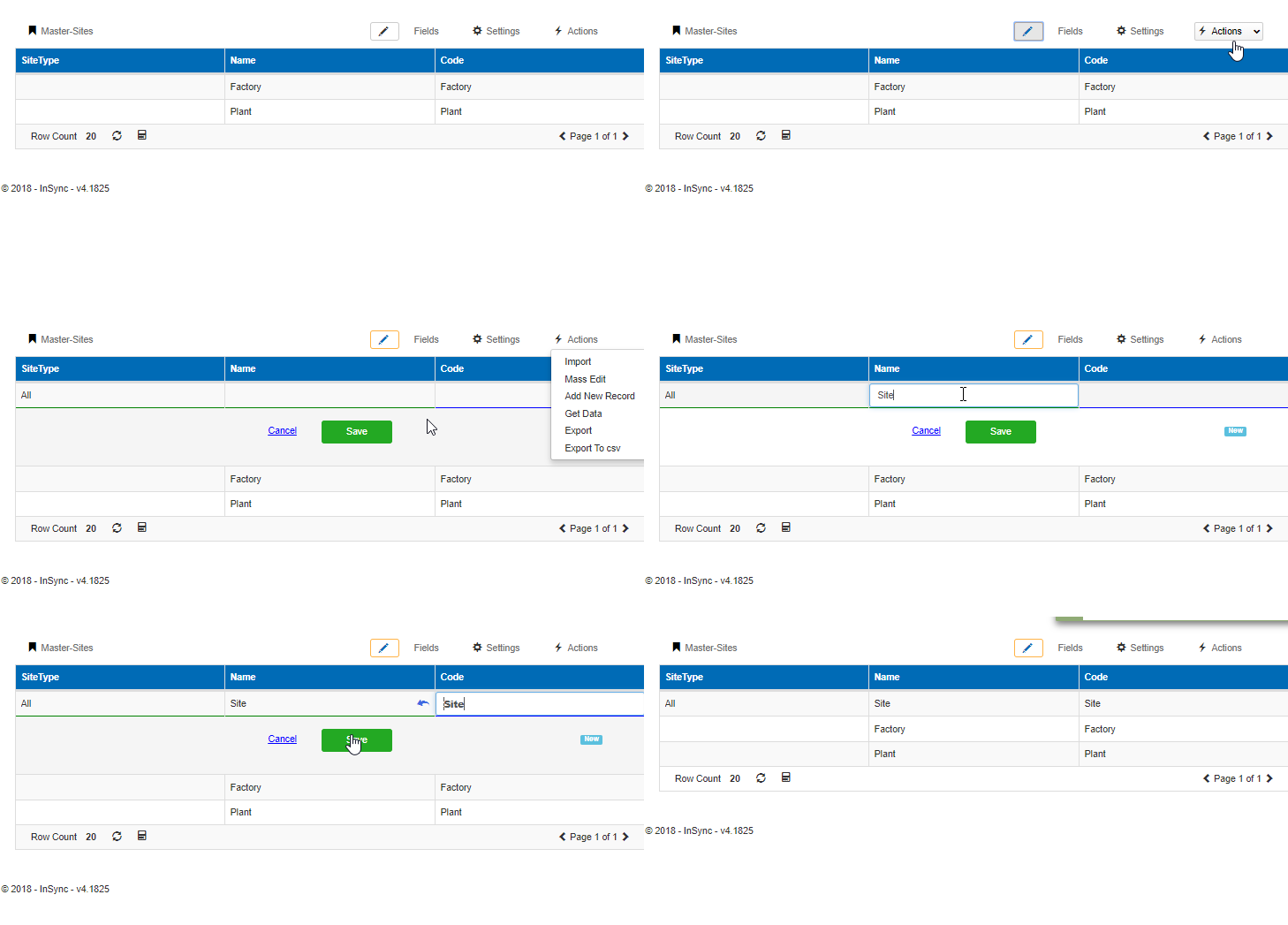
Add new record – Inline Edit Mode
Previously, adding new records was only supported through outline edit mode. With this release, new records can also be added in Inline Edit Mode
- Switch to Inline Edit Mode and click on Actions -> Add new record
- A new row is added to the top of the grid to enter values and save.
Outline Editor – Improvements
The outline edit mode for grids has been redesigned for better usability and ease of data entry. The following changes have been made
- Errors while saving show up as a red icon next to the field which has the error

- Required & Revert and read only flag appears on the right side of the field.
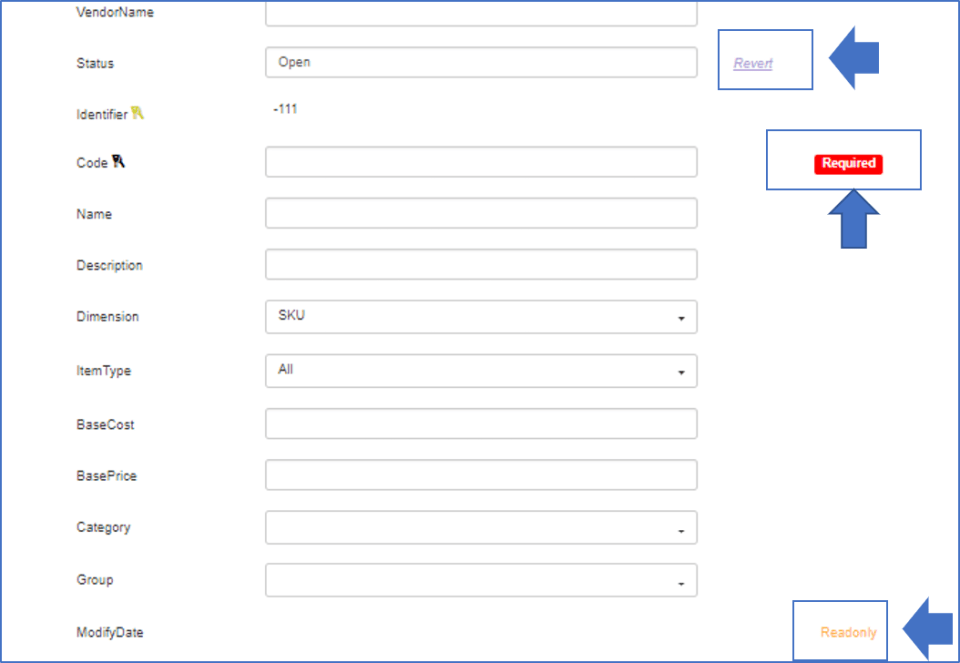
- The required field smartly disappears once data is entered and reappears if it is blank again

- Any selections in groups/categories are saved for the browser used until cache is cleared.
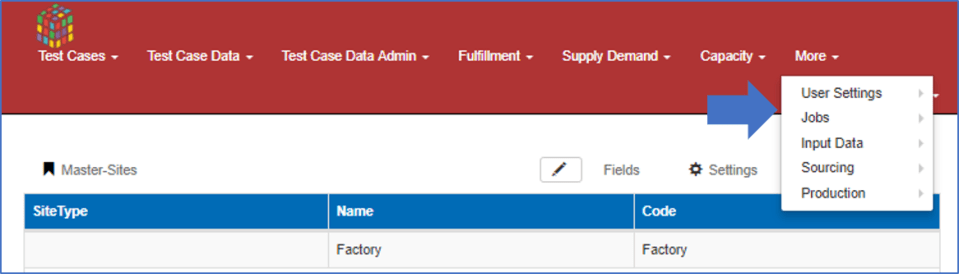
Single line Top Menu
If the top menu bar has too many categories that cannot be displayed in a single line, a new “More” category is displayed with all other categories grouped under it as seen below in the picture.
New Subscriptions Screen
- Go to User Settings -> User Preferences and click on the Subscriptions tab to view all subscriptions that the user has subscribed to for job alerts
- Subscriptions can be deleted from this screen through the delete button
 InSync