The Scheduling UI has sequencer functionality where users can change the sequence of operations through drag and drop functionality.
The below section explains how to use the sequencer.
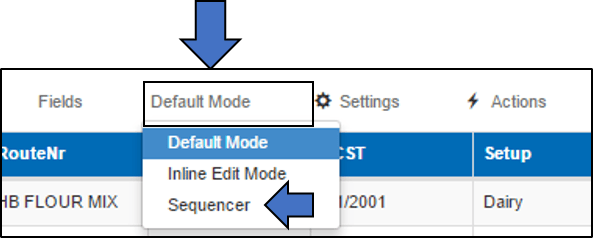
- In the relevant grid where sequencer is applicable, change to sequencer mode by clicking on the default mode button
- Once the sequencer mode is activated, drag and drop the desired rows to the new sequence positions
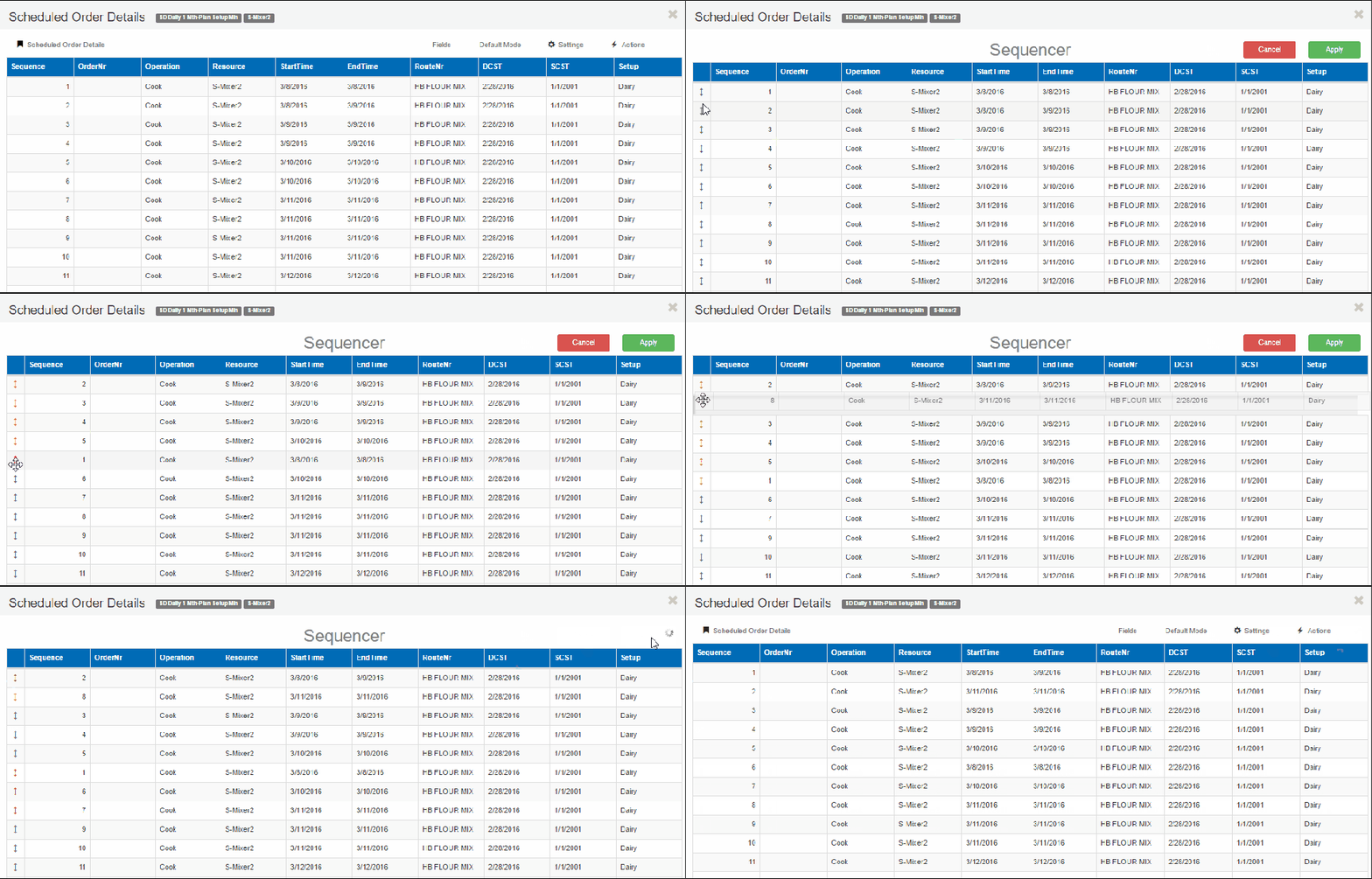
- Click apply to see the new sequence order
Sequencer logic
When rearranging rows through drag and drop, the relative positions of the rows are remembered before making changes.
The new rows are assigned the sequence based on their positions in the grid.
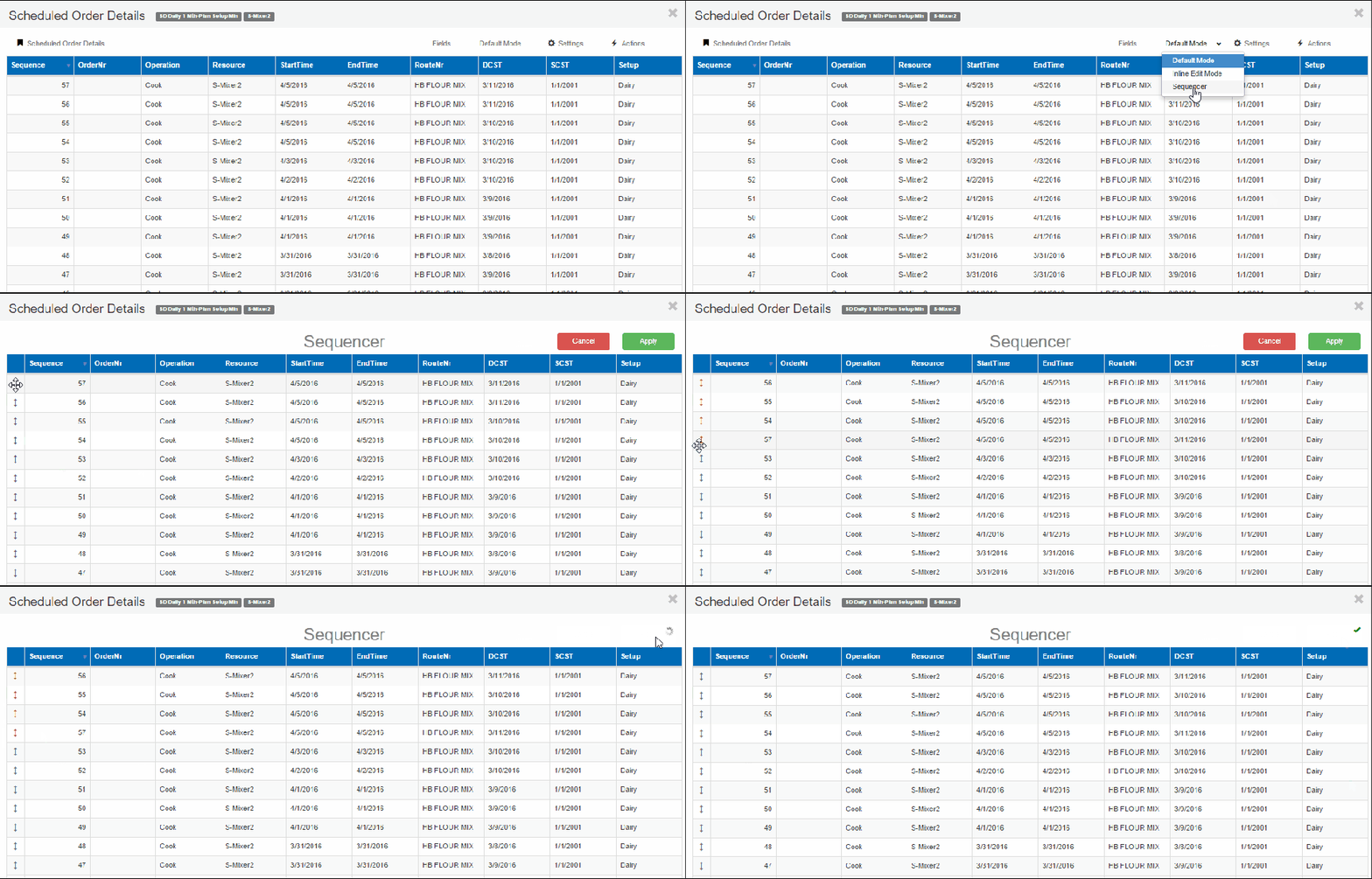
This ensures that the correct sequence is assigned even if the grid has filtered data or is sorted in descending order. A few examples are shown below
Grid sorted in descending order of sequence
Grid sorted in a random order
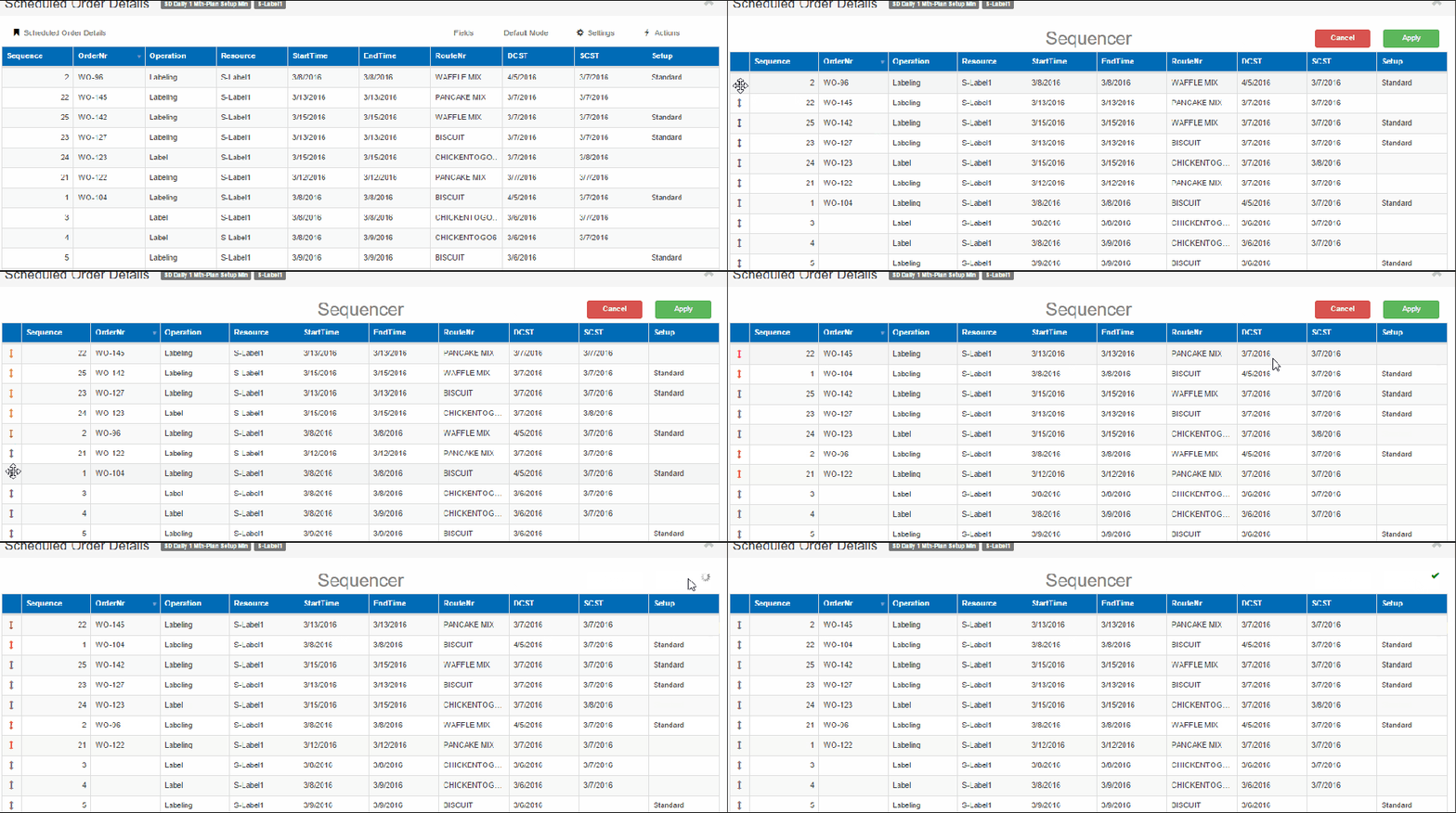
As seen from the above gif, the sequence numbers before and after remain the same while the order numbers are now in different relative positions.
 InSync