The Scheduling UI is a Gantt chart with options to edit and re-arrange operations and save changes.
The following functions are available within the scheduling UI
- Filter: Based on Category, Group or resource
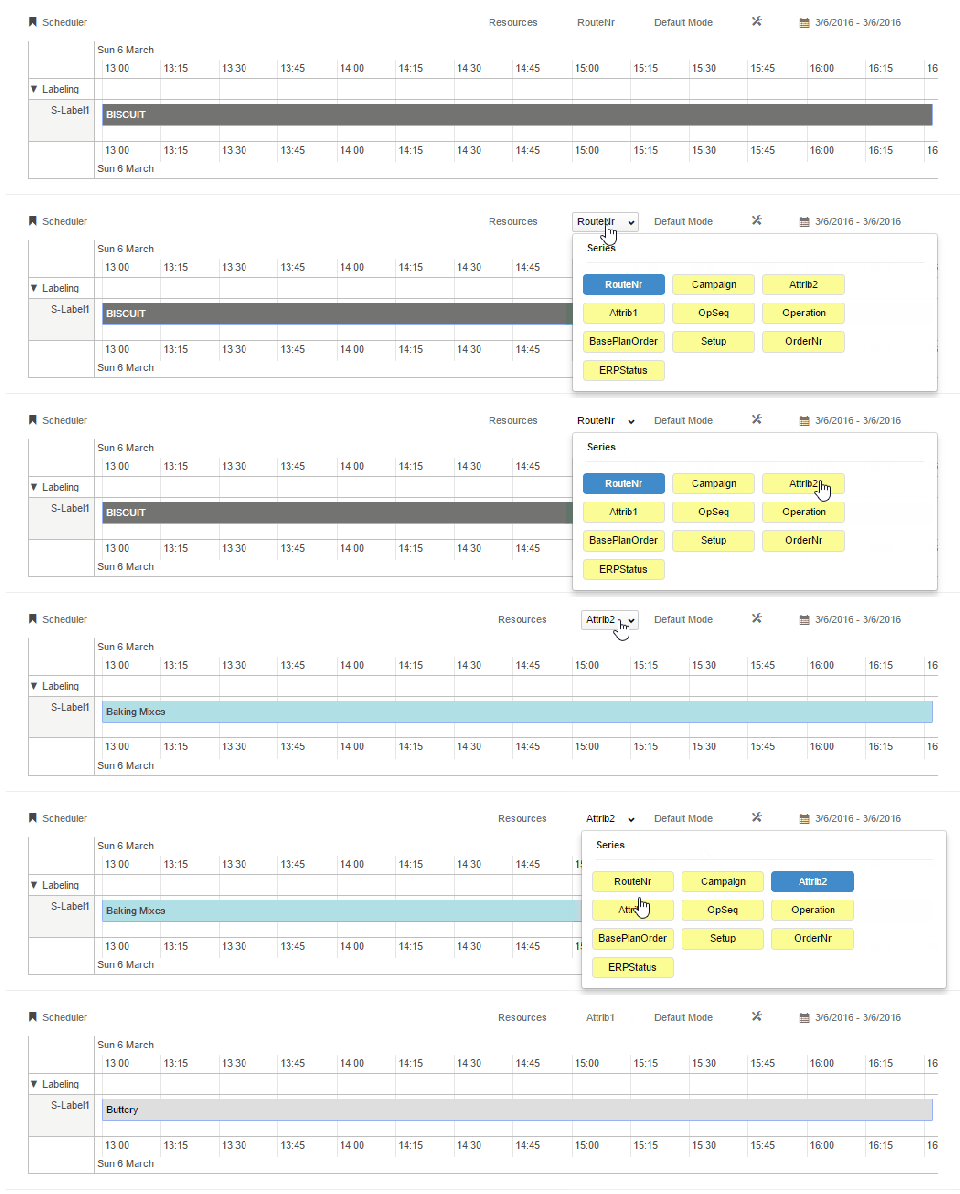
- Series: Change labels of operations to see relevant information. Ex: attribute/route number, ERP status etc
- Group by: Group resources based on Resource Category or Resource Group
- Modes: Toggle between Scheduler Mode, default mode or preview mode
- Date Filter

1) Filter data
- Click on the Resources button to open the filter area.
- Search and select the relevant category, group or resource
- Click on close to apply filters.
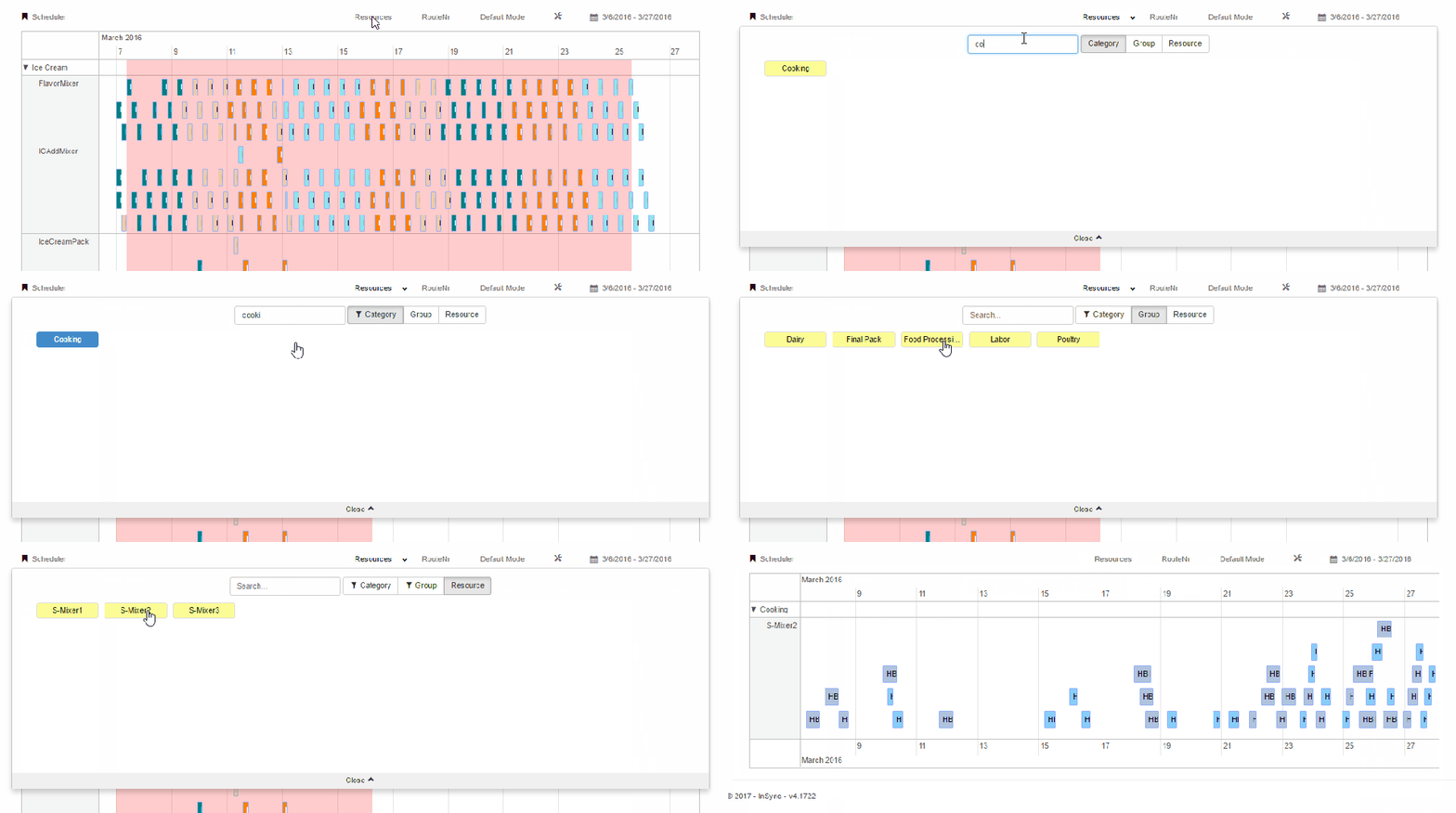
2) Change Series
- Click on the series button to change the label information displayed on operation.
- Click on any button to instantly see the new label
3) Group By
- Click on the settings icon
- Toggle between group by Resource Category or Resource Group
- Click close to apply changes
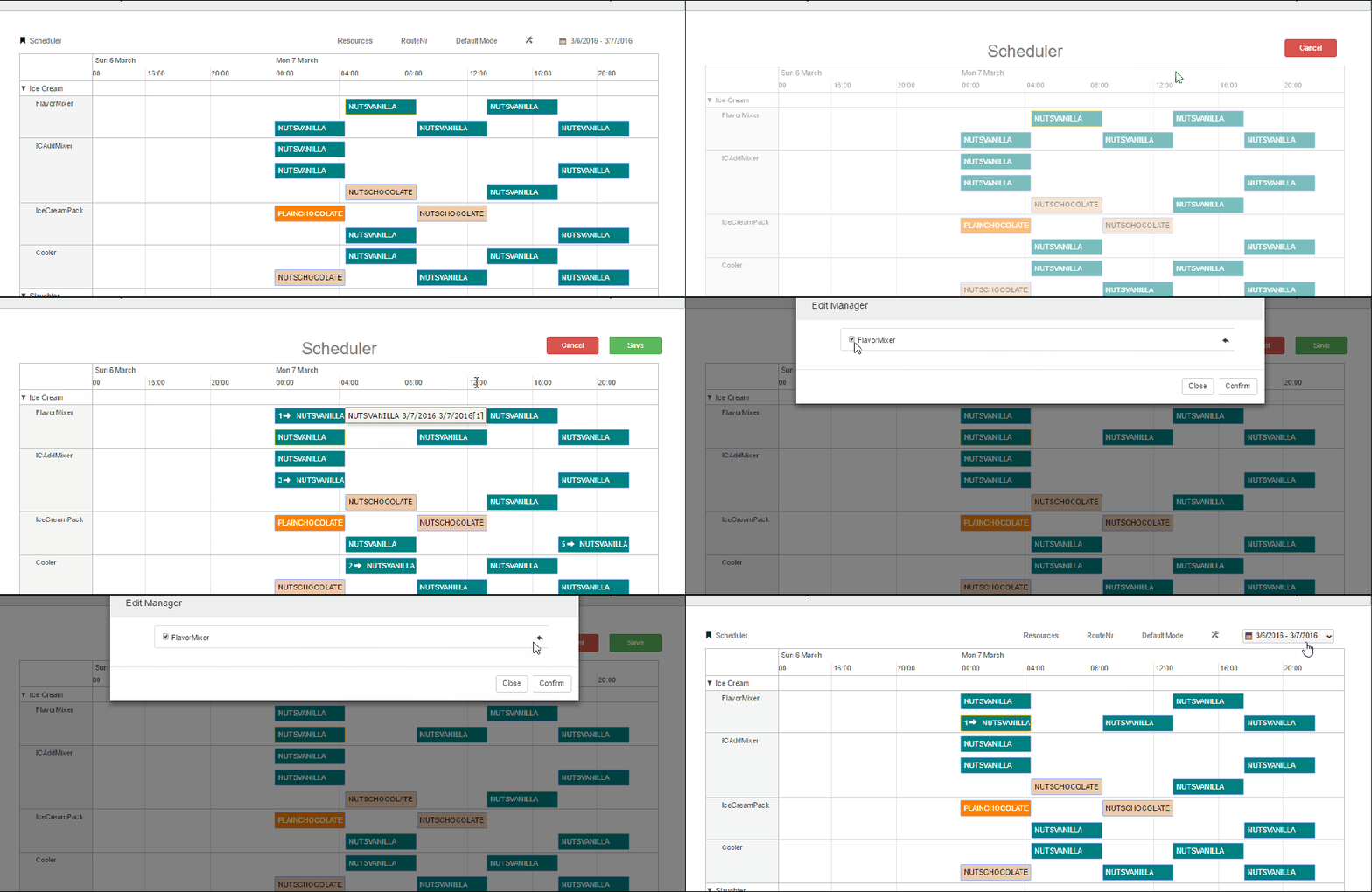
4) Modes
In the scheduler mode, users can drag and drop operations and save changes.
- Click on the default mode button
- Select scheduler mode
- Drag and drop any operation to the desired start time
- Click save
- In the edit manager, unselect if the changes are not desired.
- Click confirm will apply the changes.
- The screen remains in scheduler mode. Click on cancel to go back to default mode
In the preview mode, users can open drilldowns in preview mode by clicking on the operation. Any related drilldown will appear in the preview screen
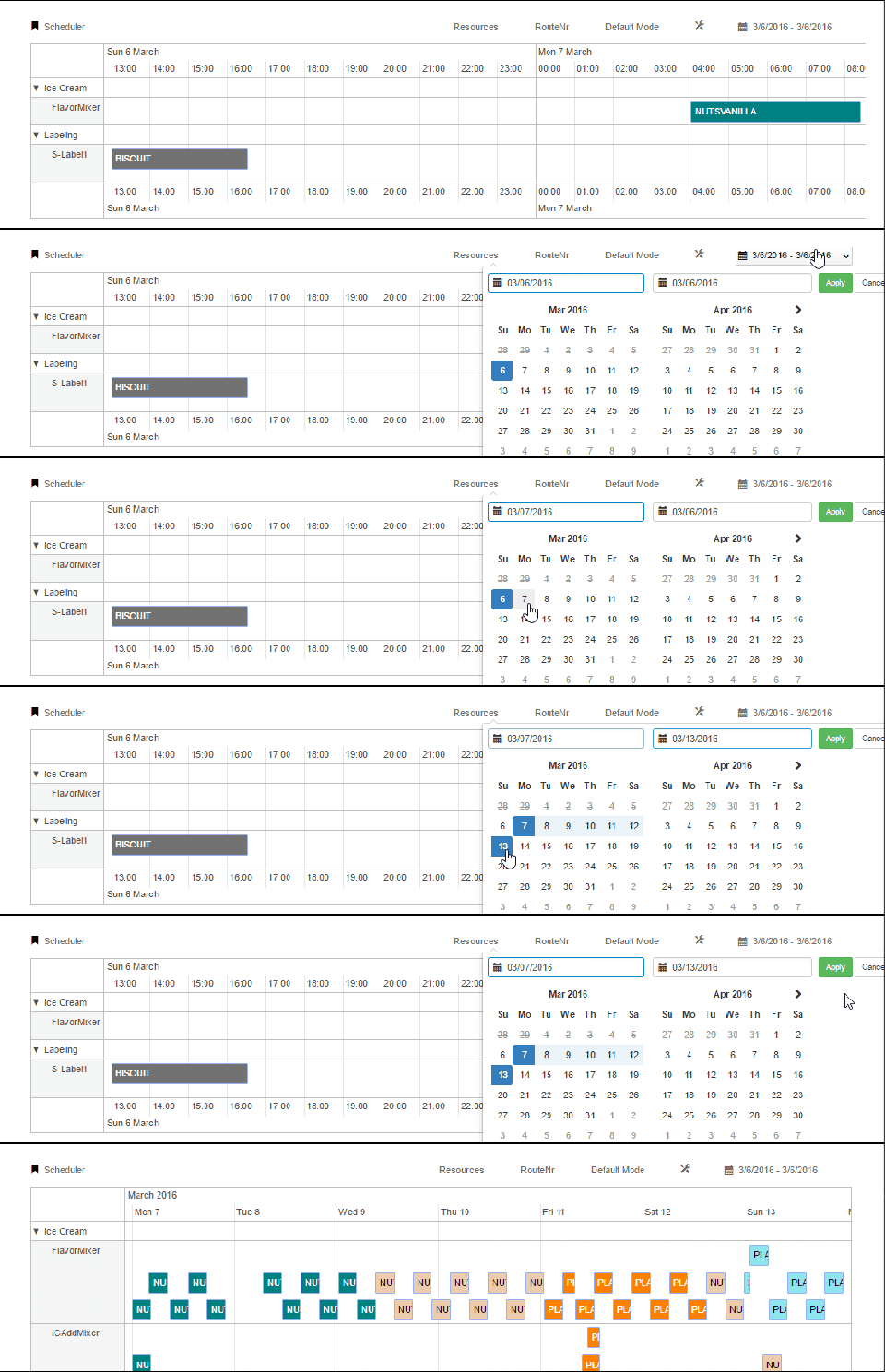
5) Date Filter
To filter data based on dates follow the steps below
- Click on the date range button
- Select the start date and end date and click on apply
 InSync