
This release includes significant improvements to screen navigation charting and job scheduling components. These changes would address stability, performance and usability of the product. Some key key improvements include Task execution time history report, Navigation backward, aggregation in chart and support of multiple axis in charts.
In the latest InSync Cloud release the following changes have been made.
 Navigation capabilities added to more components
The following components support drill down navigation.
- Pivot, cPivot & Gantt Charts
- ML View
- Network visualization

Pivot/cPivot
In pivot on right click there is go to option on the Data Area. This option available for go-to depends on the columns and rows combinations selected
MLVIEW
In MLVIEW on right click there is go to option on the Data Area. This option available for go-to depends on the Data Fields
Network visualization
Added functional to navigate to and from visualization. Ability to navigate from screens which contains definition of Node (Item/Location/Organization). Also Added ability to navigate from Node and Capacity.
Go To workflow Redesign
GoTO functioanlity has been significantly modified to to stream workflow and enhance user experience. In the current change when user selects to Module in GoTO right click menu the the screen is redirected to single module Users can further navigate to drill downs.
Also Popup capability is added to GOTO navigation. This functionality would give to user the ability to quickly accessing reports without navigating from the screen.

New Page

Pop Up
Back Button
When user navigates to multiple levels for drill downs, then users have ability to backtrack to previous screens using the back options.
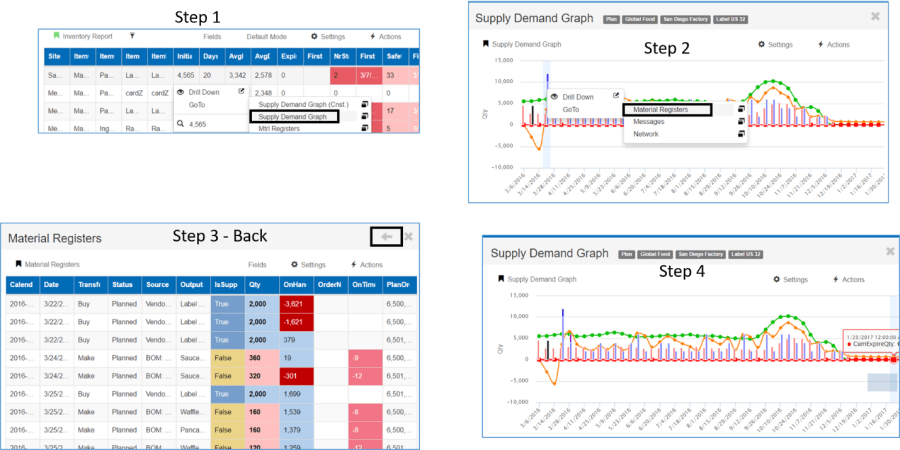
- In Step 3 if we click on the X it will take us back to the Inventory Report workbench in Step 1 directly.
- In Pop up screen the regular drilldowns are disabled. Only the Go to function is available.
Close in Go to
- Click on the ‘X’ to close the single mode and return to the original workbench.
- In pop up mode, this closes the popup.
- In the new page mode, the close button will return the page to the original workbench.
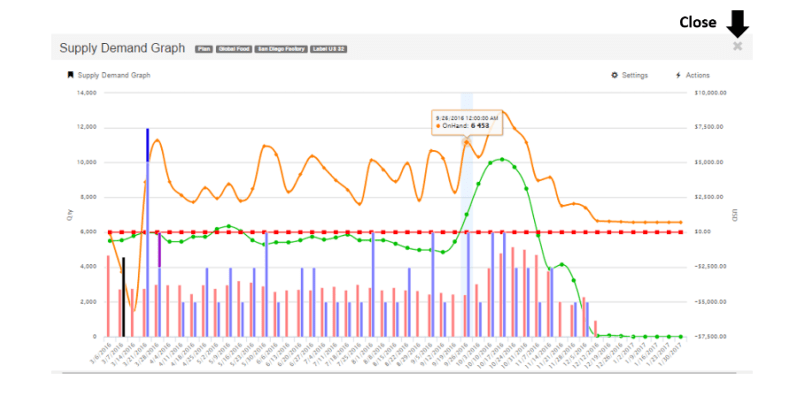
Chart Redesign(backend)
- Charts have been redesigned to improve their performance and make them more stable.
- UI look and feel will be similar as before as the changes are in the backend
New/Improved functions in Charts
- In charts, multiple X-Axis are now supported.
- User can switch between available x-axis to change the chart view
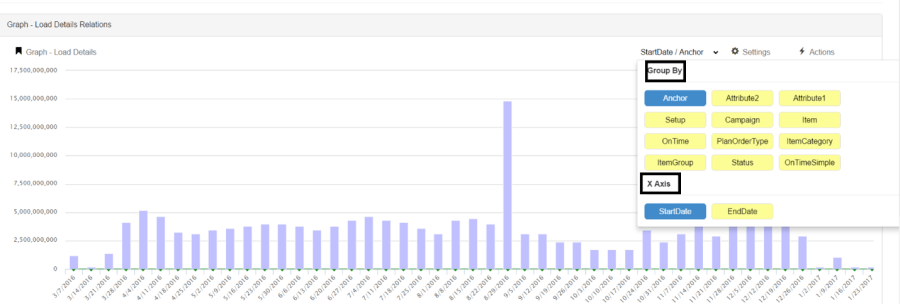
- Group By functionality has been improved for easier selection and visibility
Task Execution Time
- There is a new feature to view the task execution time for each task under Schedule history.
- Under Schedule -> History for any given task click on the three dots to select the Task Execution Time to view the execution time for the selected task
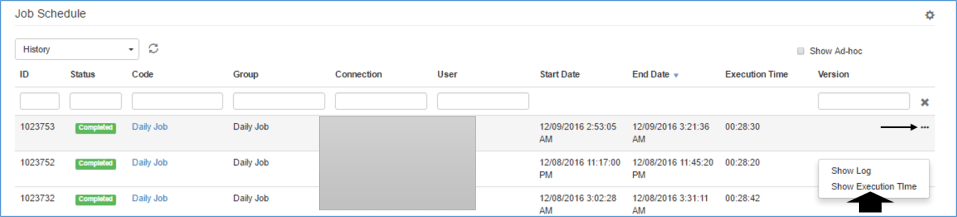
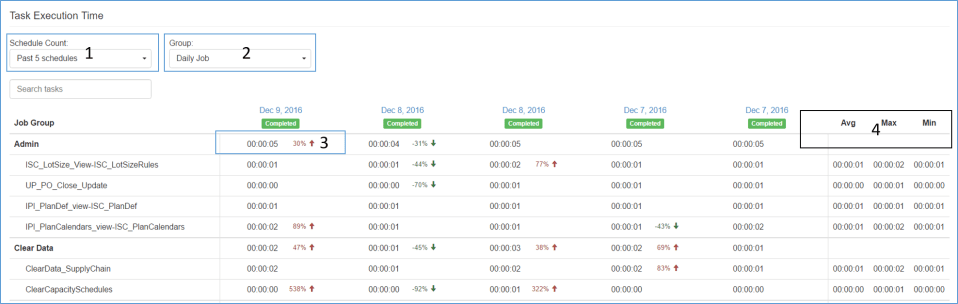
- From the task execution screen the following options are available
- 1 – Change the number of past schedules to view.
- 2 – Switch to a different job.
- 3- View the change % for each map within a task. The change % is only shown if the change is greater than 20%(increase or decrease).
- 4- View the average, maximum and minimum values over the period.
 InSync